Appearance
Index your data using MacOS CoreSpotlight and Python
Getting deep integration in MacOS is a great way to improve the overall user experience. However, having to learn Swift when all your projects are written in Python can be a challenge.
The following article only shows code snippets - a complete starter template is available at the end.
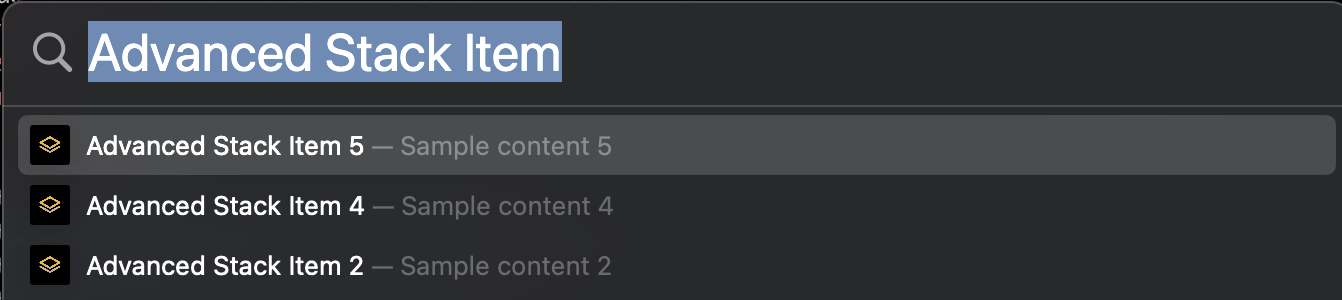
Display custom generated results in Spotlight using Python and pyobjc bindings
In order to display custom results pointing to your application, we will use pyobjc bindings of:
CSSearchableItemAttributeSet: Metadata object about your dataCSSearchableItem: The wrapper object to be indexedCSSearchableIndex: The Spotlight index
We will generate sample data for our example:
python
data = [
    {
        "title": "Title 1",
        "display_name": "Advanced Stack Item 1",
        "content": "Sample content 1",
    },
    {
        "title": "Title 2",
        ...

    {
        "title": "Title 5",
        "display_name": "Advanced Stack Item 5",
        "content": "Sample content 5",
    },
]
Create the required objects
Let's define the utility functions make_searchable_item and register_searchable_item:
python
def make_searchable_item(title, display_name, content):
    attribute_set = CSSearchableItemAttributeSet.alloc().initWithContentType_(
        UTTypeUTF8PlainText
    )

    attribute_set.setTitle_(title)
    attribute_set.setDisplayName_(display_name)
    attribute_set.setContentDescription_(content)
    attribute_set.setThumbnailData_(thumbnail_data)

    searchable_item = CSSearchableItem.alloc()
    searchable_item.initWithUniqueIdentifier_domainIdentifier_attributeSet_(
        uuid.uuid4().hex,
        "com.advanced-stack.app",
        attribute_set,
    )

    return searchable_item


def register_searchable_item(item):
    index = CSSearchableIndex.defaultSearchableIndex()
    index.indexSearchableItems_completionHandler_(
        [item], index_completion_handler
    )
Upon calling register_searchable_item, the results will actually show in Spotlight as you type the query.
Define the callback when the user selects the results from Spotlight
Once a generated result is displayed in Spotlight, you will have to write a callback to be run when the user presses the return key:
We'll add the following method to the AppDelegate class (the example only write a log entry):
python
def application_continueUserActivity_restorationHandler_(
    self, application, userActivity, restorationHandler
):
    logger.info(f"received {userActivity.activityType()}")

    if userActivity.activityType() == "com.apple.corespotlightitem":
        userinfo = userActivity.userInfo()
        identifier = userinfo.get("kCSSearchableItemActivityIdentifier")
        query = userinfo.get("kCSSearchQueryString")
        item = userinfo.get("kCSSearchableItemActivityIdentifier")
        item_type = userinfo.get("kCSSearchableItemActionType")
        cont_type = userinfo.get("kCSQueryContinuationActionType")

        logger.info(
            "\n".join(
                (
                    f"identifier:{identifier}",
                    f"query:{query}",
                    f"item:{item}",
                    f"item_type:{item_type}",
                    f"type:{cont_type}",
                )
            )
        )
        return True
Building the app with pyinstaller
Once you have all the code written, we'll use pyinstaller to bundle the application:
shell
pyinstaller --add-data ./assets/:. -i ./assets/logo.png --windowed --clean --noconfirm ./SpotlightPythonService.py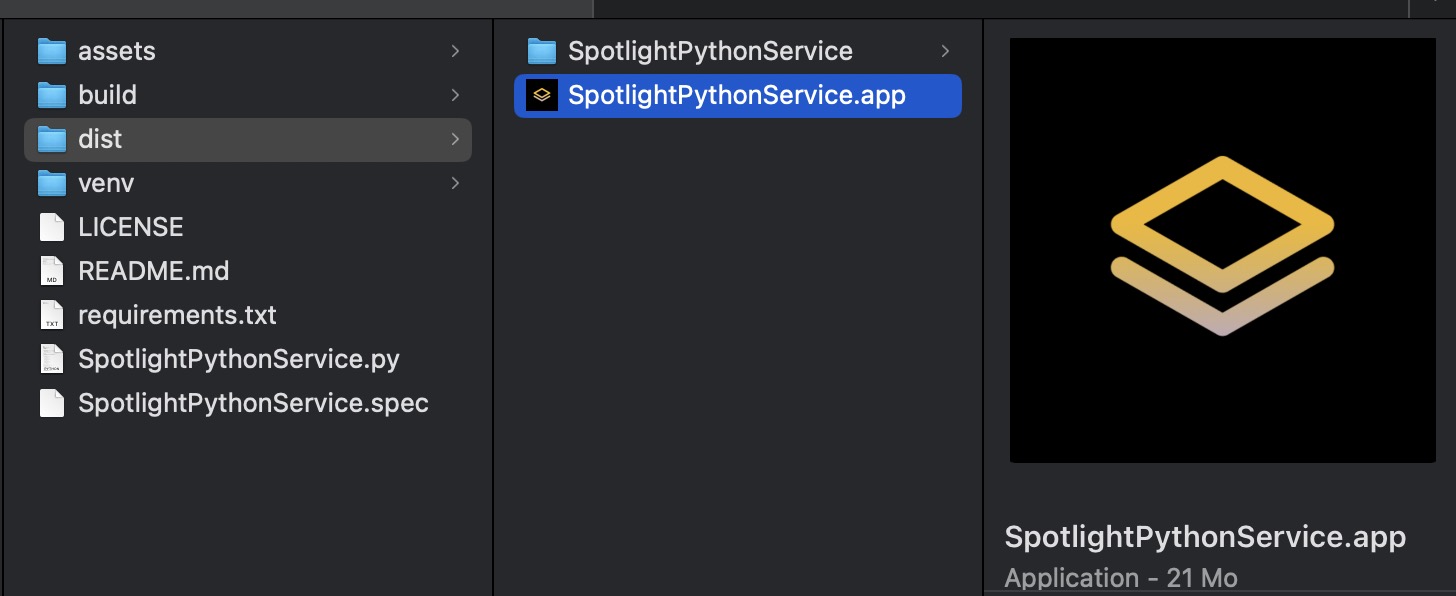
Code starter template: Core Spotlight API with Python
The code is available on github.